
wordpress white screen
Why your site suddenly shows a white page
When your WordPress site turns into a white page (sometimes called the White Screen of Death), the issue isn’t necessarily that the site is dead: it’s often a PHP crash, a hidden fatal error, or an exhausted server resource. The browser shows nothing because execution stops before generating HTML, or because error display is disabled in production (which is normal).
The difficulty is that several different causes produce exactly the same symptom: a blank screen, sometimes only on the front end, sometimes only in the admin area, sometimes on a specific page. The right approach is therefore to diagnose methodically, from the most likely to the quickest to check, without making the situation worse.
The most frequent causes (and how to recognize them)
1) Plugin conflict or bug
This is one of the top causes. A plugin can trigger a fatal error after an update, a PHP version change, a conflict with another plugin, or an incompatibility with your theme. Clue: the white screen appears right after an update, the activation of a feature, or on a page related to that plugin (form, cache, security, builder, e-commerce…).

2) Theme (or builder) issue
A theme can call a non-existent function, contain a corrupted file, or be incompatible with the WordPress/PHP version. Visual builders (page builders) add an extra layer and can amplify conflicts. Clue: the admin works but the public site is blank, or vice versa depending on the failure point.
3) PHP memory limit reached
If WordPress runs out of memory (WP_MEMORY_LIMIT) or your host enforces a too-low limit, execution can stop abruptly. This often happens on sites with many plugins, WooCommerce, or heavy tasks (import, image generation, caching, backup). Clue: the white screen appears on heavy pages (editor, import, customizer, product pages) or intermittently.
4) Hidden fatal PHP error (or error display disabled)
In production, PHP errors are usually logged but not displayed. Result: you see nothing. Clue: no page loads, or only some pages, without an explicit message.
5) Cache, optimization, minification
Caching and optimization plugins (JS/CSS minification, lazy loading, file concatenation) can break the rendering. In some cases this doesn’t produce a complete white screen, but an empty output or incomplete HTML. Clue: the issue appears after enabling an optimization, or differs by device/browser.
6) Corrupt WordPress files / incomplete update
An interrupted update (timeout, FTP drop, permissions) can leave WordPress in an inconsistent state. Clue: the problem occurs during or just after a core update, and back‑office access may be partially possible.
7) File permissions, permissions, or full disk
If the server can no longer write (disk full, overly restrictive permissions), some operations fail and can cause cascading effects. Clue: uploads fail, updates error out, or logs show write errors.
Discover our offers for WordPress website maintenance
8) Host-side issues (PHP-FPM, opcode cache, incidents)
Sometimes everything is fine on the WordPress side, but the PHP service is unstable, a server cache is corrupted, or a configuration changed. Clues: random errors, inconsistent response times, or an incident confirmed by the host.
Diagnose without wasting time: recommended order of actions
The goal is to get a working site back as quickly as possible while identifying the root cause to prevent recurrence. Ideally proceed in this order: (1) check if the issue is global or partial, (2) enable logs, (3) isolate plugins, (4) isolate theme, (5) check resources and versions, (6) cache and optimization, (7) file integrity, (8) server environment.
Step 1: determine the exact scope of the problem
Before touching anything, check:
– Is the front end completely white, or only certain pages?
– Is the admin /wp-admin/ accessible?
– Does the problem occur for all visitors or only when logged in?
– Did you make a change just before (update, new plugin, cache setting, migration)?
This simple triage saves you a lot of time: an all-white screen points more to a global fatal error, while a white screen on a specific page may come from a shortcode, a template, or a localized conflict.
Step 2: properly enable debugging (without exposing everything)
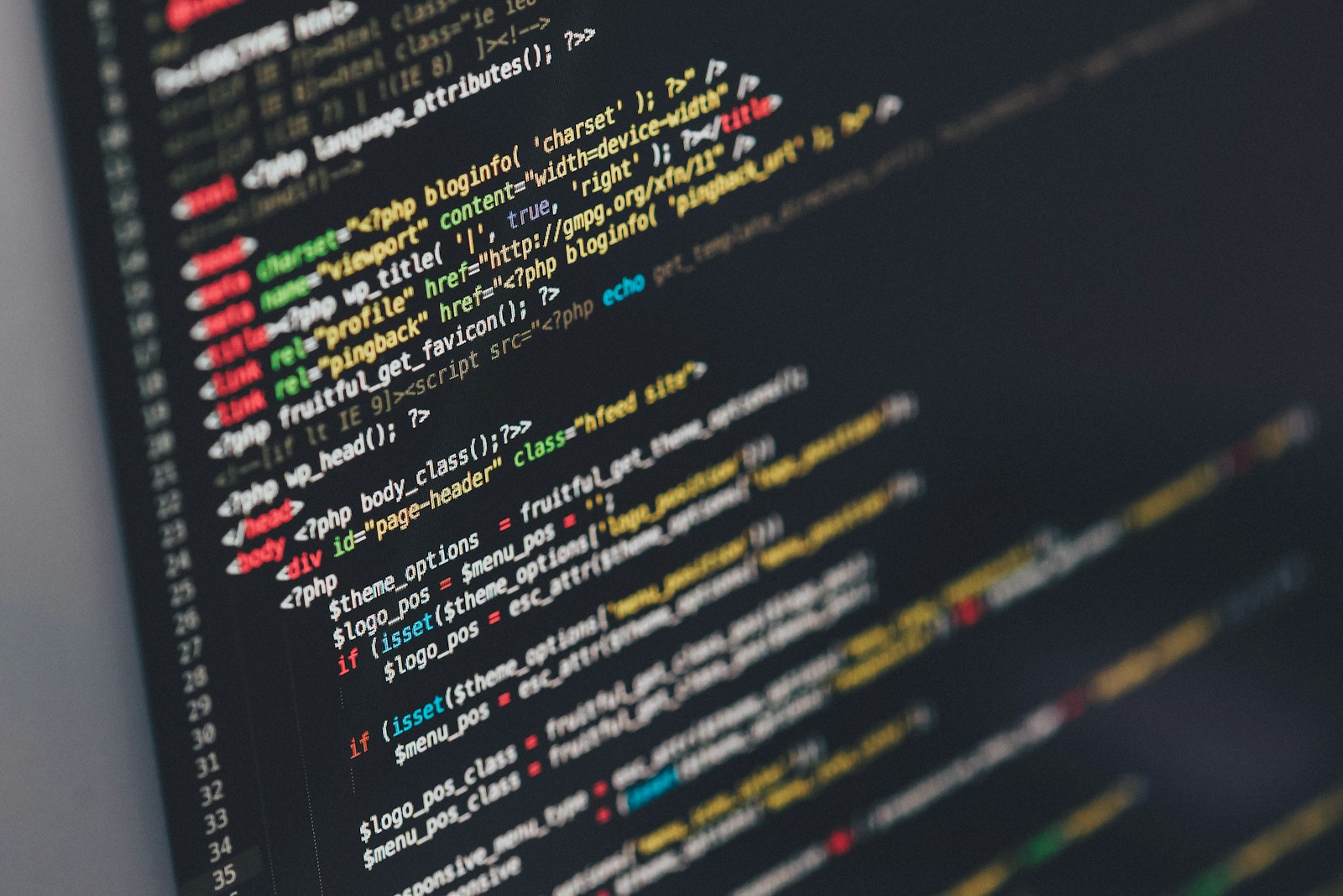
To get out of silence, enable error writing to a log file. In wp-config.php you can enable WP_DEBUG and especially WP_DEBUG_LOG (and avoid WP_DEBUG_DISPLAY in production). Then reproduce the issue and check the log file (often in wp-content/debug.log depending on configuration).
This log will often give you the exact line: a Fatal error, a missing function, a missing class, a PHP version incompatibility, etc. It’s the most direct way to identify the plugin, theme, or file at fault.
Step 3: deactivate all plugins to isolate the culprit
If you have access to admin, deactivate all plugins at once, then reactivate them one by one until the problem reappears. If you don’t have admin access, use FTP/SFTP or the host’s file manager: rename the wp-content/plugins at plugins_old (or rename only the suspected plugin folder if you have a lead from the logs). WordPress will then disable the plugins.

Once the site is back, restore the folder and rename the plugins one by one, or reactivate via admin to find the responsible one. Also remember to check mu-plugins (wp-content/mu-plugins), often forgotten because they are not listed in admin.
For a guided approach with variants depending on access (FTP, control panel, etc.), you can consult this external guide: White Screen in WordPress: how to fix it quickly.
Step 4: test with a default theme
If deactivating plugins changes nothing, the theme (or a child theme) is likely at fault. Temporarily switch to a native theme (Twenty Twenty-Three/Twenty Twenty-Four depending on your version). Without admin access, rename the active theme folder in wp-content/themes : WordPress will fall back to an available default theme (if present).
If the site returns, then inspect: functions.php, recently modified template files, added code (snippets), PHP version compatibilities, or builder modules. Fatal errors in functions.php are particularly common after adding copied-and-pasted code.
Step 5: increase PHP memory and check resources
If the logs show memory exhaustion (or if you suspect a heavy page), raise the limits. You can:
– Define WP_MEMORY_LIMIT in wp-config.php (if permitted).
– Adjust memory_limit on the PHP side (php.ini, .user.ini, or hosting panel).
– Reduce load: temporarily disable heavy plugins, purge transients, limit concurrent tasks (cron, backups, security scans).
On heavily pluginized e-commerce sites, a too-low limit (e.g. 128M) can become insufficient depending on usage. Also monitor CPU/RAM and process limits imposed by the hosting plan.
Step 6: purge the cache and disable aggressive optimization
If the white screen appeared after enabling minification/combination, disable those options as a priority. JS optimizations (defer, delay) sometimes break execution and can lead to a blank screen if rendering depends heavily on scripts. Purge:
– Cache plugin (page, object).
– Server cache (Varnish, Nginx cache).
– CDN cache (Cloudflare, etc.).
If you cannot access the back office, temporarily rename the cache plugin to neutralize it, then delete the cache files (dedicated folders in wp-content depending on the solution).
Step 7: check WordPress integrity and update status
An interrupted update can leave a site in an unstable state. You can re-upload the WordPress core files (without touching wp-content or wp-config.php) from an official release matching your target version. Ensure permissions are consistent and the server can write where needed (uploads, cache, updates).
Discover our offers for WordPress website maintenance
For detailed host-side procedures (panel access, basic checks), this external resource may help: How to fix the white screen on my site.
Step 8: check the PHP version and incompatibilities
A change of PHP version (intentional or forced) can cause fatal errors on themes/plugins that are not compatible. Conversely, staying on a PHP version that is too old can also cause incompatibilities with recent plugins. Check:
– Active PHP version and required modules.
– Extension compatibility (release notes, minimum requirements).
– Errors in the logs: deprecated is not fatal, but some type/compatibility errors can be fatal depending on the code.
If you suspect an incompatibility, temporarily test a nearby PHP version (e.g. from 8.2 to 8.1) to confirm the diagnosis, then plan to upgrade the code rather than remain stuck on a non-recommended version.
Special cases: when the white screen does not appear everywhere
White screen only on /wp-admin/
Often related to a plugin (security, cache, editor) or a memory resource issue when loading the admin. Disable plugins via FTP, then test. Also check errors in debug.log, because the admin loads many files.
White screen only on one page or one content type
This can come from a shortcode, a block, a specific template, a custom field, or an overly heavy query. Check the page content, deactivate plugins that inject shortcodes/blocks, and test with a default theme.
White screen only for logged-in visitors
Often due to the editor, a role/permissions plugin, or misconfigured cache (page cache served to an authenticated user). Check cache exclusion rules for logged-in users and sensitive pages (cart, account, admin).
Quick fixes vs lasting fixes
Once the site is back, don’t just leave a plugin deactivated without understanding. The white screen is a symptom; a lasting fix involves:
– Precisely identifying the faulty component (plugin/theme/file).
– Updating to a patched version or rolling back to a stable release.
– Replacing an abandoned extension with a maintained alternative.
– Fixing the code (if you have a custom snippet).
– Adjust server resources if the site has grown.
To delve into a complete troubleshooting method (disabling, logs, memory, theme), you can also consult: Fixing the white screen/blank page on WordPress ….
Preventing the issue from recurring: maintenance best practices
Prevention is the difference between an isolated incident and recurring outages. The most effective actions:
– Set up a staging environment to test updates and new plugins.
– Automate reliable backups (and test restoration).
– Monitor logs (PHP, WordPress, server) and configure availability alerts.
– Avoid stacking redundant plugins, especially multiple cache + security + optimization plugins.
– Document changes (who updated what, when, and why).
Choose robust plugins to reduce conflicts
Many white screens occur after adding a convenient but poorly maintained plugin. Check before installation: update frequency, declared compatibility, support, review quality, and introduced load. Premium plugins are not automatically better, but they sometimes offer clearer support and maintenance cycles, which reduces production risks.
To compare criteria and avoid bad choices, you can read Free Plugin vs Premium Plugin: Which to Choose?.
Security: a white screen can also be an indirect symptom
In some cases, the site turns white after overly aggressive hardening (WAF rules, file blocking, permissions), or after an infection that corrupts files. Some malware causes PHP errors, redirects, or server loads that crash PHP. If you notice files changed for no reason, unknown admin accounts, or suspicious requests, treat the incident as a security issue, not just a technical bug.
Discover our offers for WordPress website maintenance
To review the most common pitfalls and strengthen your posture, consult The Most Common Security Errors.
After fixing: essential checks (SEO, navigation, errors)
Once the display is restored, validate that everything actually works:
– Browse the main pages (home, categories, posts, conversion pages).
– Test internal search, forms, payment (if e-commerce).
– Check the browser console for JS errors that could result in a blank render depending on the pages.
– Check server errors and WordPress logs over 24–48 hours.
If the incident occurred after a migration or a large update, take the opportunity to check for broken links and HTTP statuses. On that specific point, Fixing 404 Errors After a Migration can help you clean up residual issues.
Impact on indexing: what to check if Google crawled during the outage
A white screen can be accompanied by variable HTTP codes (200 with empty content, 500, 502, 503). If Googlebot encounters it, you risk temporary deindexing or a drop in visibility, especially if the outage lasts. After restoration, check in Search Console: coverage, excluded pages, server errors, and inspect some key URLs.
For a visibility-focused checklist, the article How to Check that is Indexed Correctly allows you to confirm that everything has returned to normal on the search engine side.
Multi-site management or a site network: reducing risk at scale
If you manage multiple sites, the risk of incidents multiplies: a poorly controlled automatic update, a failing common plugin, or identical server configuration can cause a series of white screens. In this context, structure:
– Update waves (canary release): 1 pilot site, then progressive deployment.
– A standardization of allowed plugins and themes.
– Centralized monitoring and verified backups.
– Representative test environments.
To put a solid organization in place, How to Manage a Portfolio of Sites Effectively provide a practical framework.
When to call the host (and what to ask them)
If you have isolated plugins and theme without success, or if the logs indicate errors like PHP-FPM, timeouts, 502/503, it’s time to involve the host. Ask for:
– Server-side logs at the exact time of the incident.
– Confirmation of a recent change (PHP version, modules, security rules).
– Resource limits and whether they have been reached (CPU, RAM, IO, processes).
– A controlled restart of services if necessary (PHP-FPM, server cache).

For another hosting-focused troubleshooting approach, you can consult: How to fix the white screen on WordPress (White ….
Action plan summary (checklist)
1) Identify whether the problem is global, admin-only, or page-specific.
2) Enable the error log and reproduce the incident.
3) Disable plugins (via FTP if necessary), then reactivate them one by one.
4) Test with a default theme.
5) Check PHP memory/resources and adjust.
6) Clear caches and undo minification/aggressive optimizations.
7) Verify integrity of WordPress files and incomplete updates.
8) Check PHP version and compatibilities.
9) After restoration: functional tests + SEO + monitoring.
Need support to prevent recurrence
If you want to secure updates, monitoring, backups and rapid interventions in case of an incident, you can discover our maintenance offers tailored to WordPress sites.